image tool
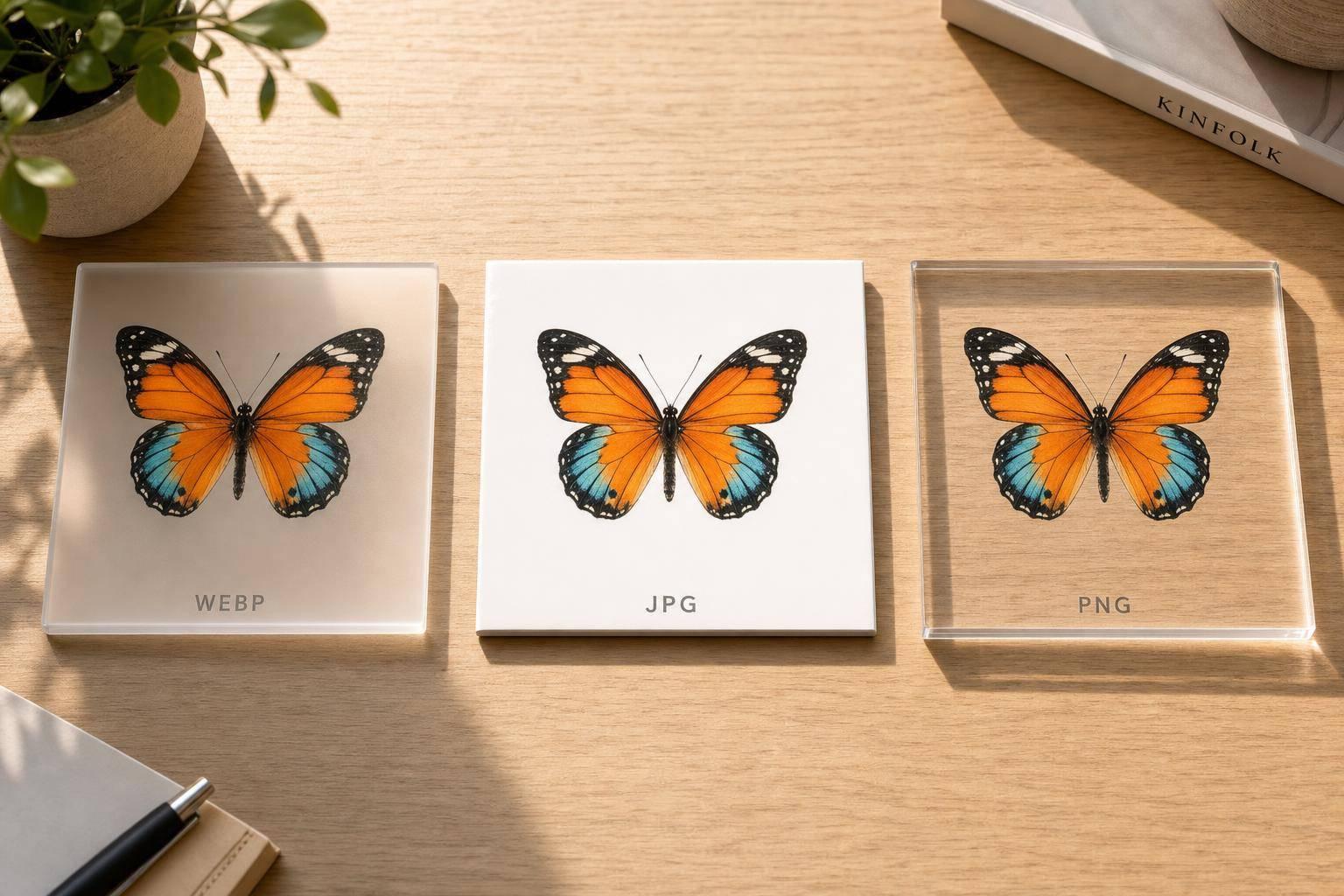

If you want the short answer: use WebP for most web images, JPG for photos when support matters most, and PNG for logos, screenshots, and any image that needs clean transparency.
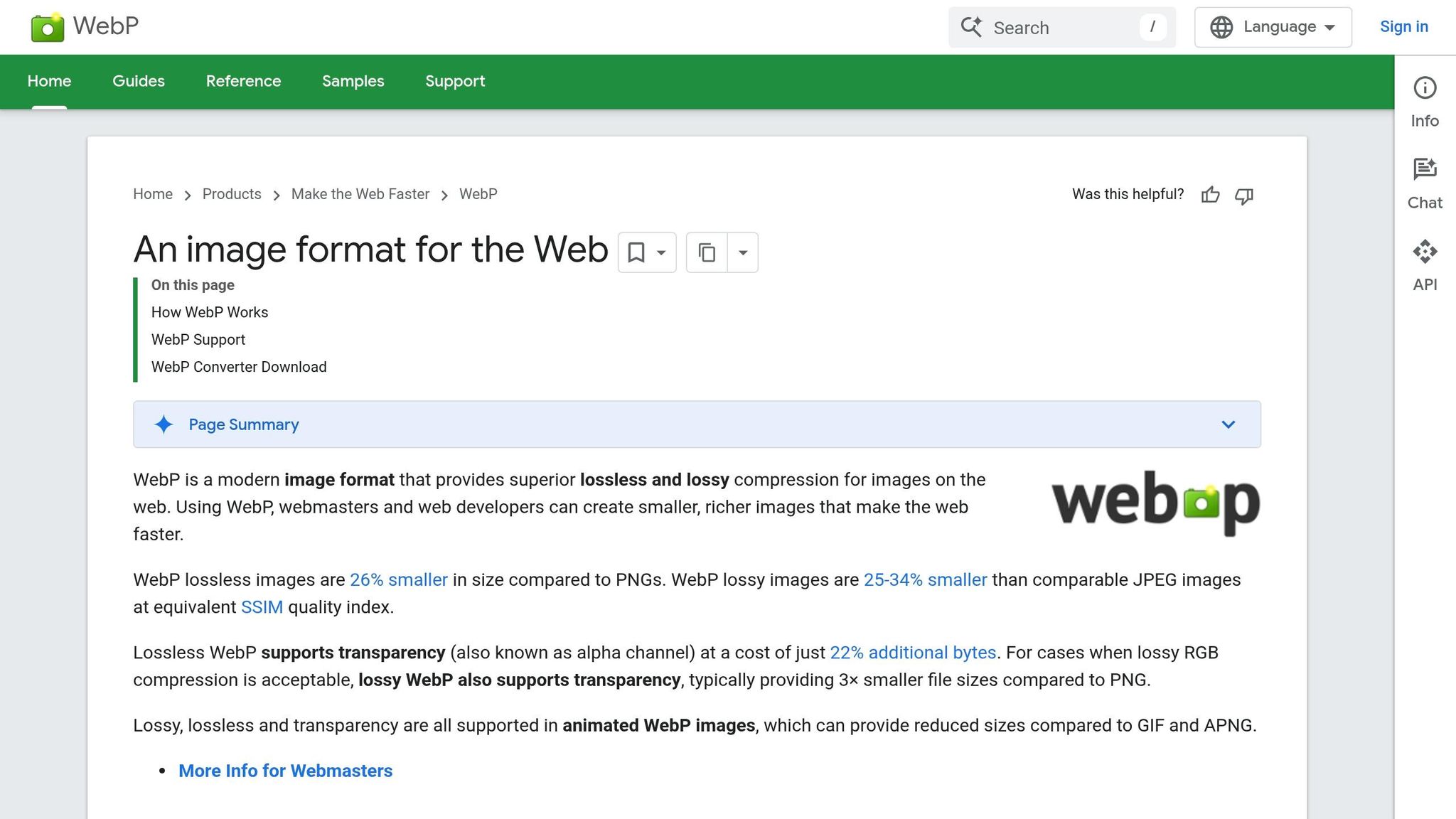
I’d sum it up like this: WebP is usually the smallest, JPG is the safest for compatibility, and PNG keeps edges and text sharp. The article also points out key numbers worth knowing: WebP support is 97%+ in modern browsers, lossless WebP can be about 26% smaller than PNG, and animated WebP can be about 64% smaller than GIF.
Before I get into the details, here are the main points you need:
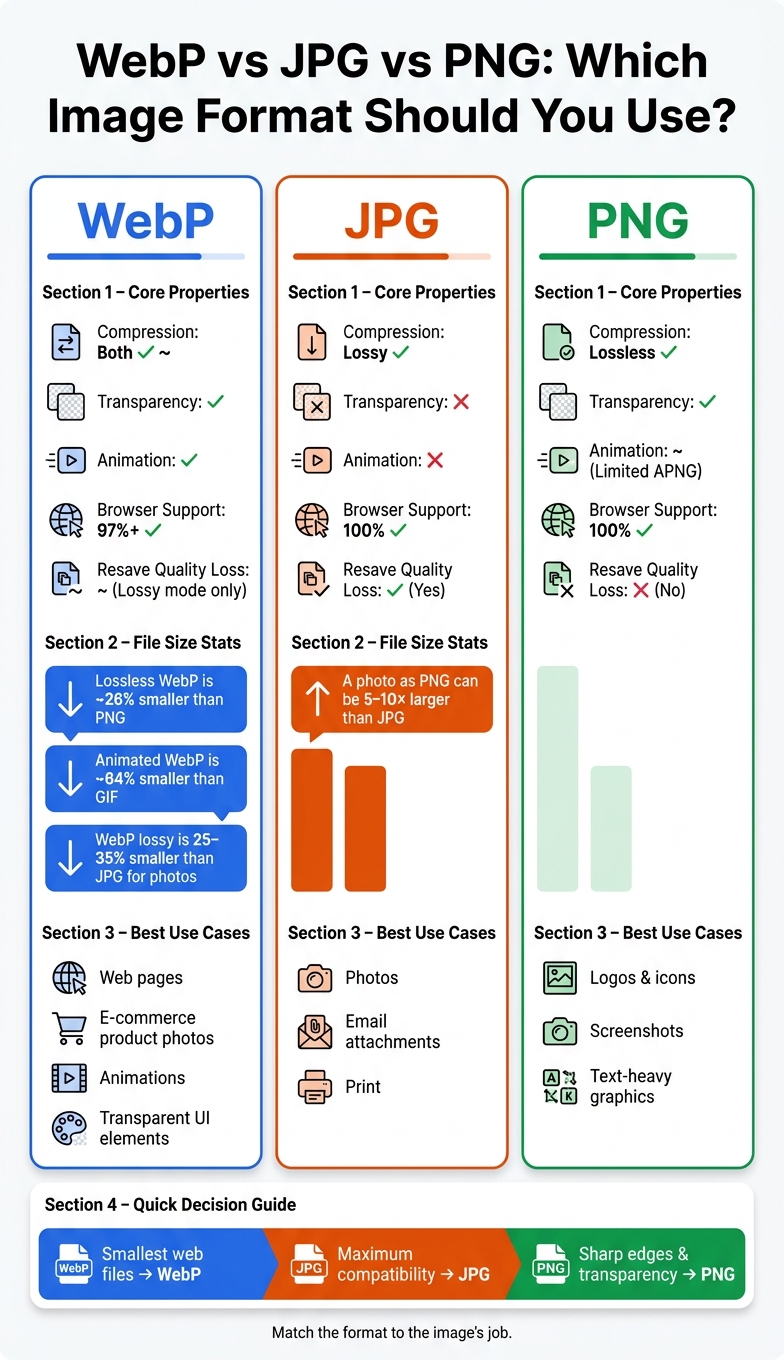
WebP vs JPG vs PNG: Image Format Comparison Guide
| Format | Compression | Transparency | Animation | Best Use |
|---|---|---|---|---|
| JPG | Lossy | No | No | Photos, email, print |
| PNG | Lossless | Yes | Limited | Logos, screenshots, graphics |
| WebP | Lossy or lossless | Yes | Yes | Web images, UI, lightweight assets |
Bottom line: if you care most about smaller web files, pick WebP. You can even convert GIF to WebP to save space on animations. If you care most about file support, pick JPG. If you care most about sharp lines, text, and transparency, pick PNG.
Here’s a quick side-by-side view of how these three formats stack up for day-to-day use:
| Feature | JPG | PNG | WebP |
|---|---|---|---|
| Compression | Lossy | Lossless | Lossy or Lossless |
| Transparency | No | Yes (Alpha) | Yes (Alpha) |
| Animation | No | Limited APNG support | Yes |
| Typical File Size | Small for photos | Large for photos | Smallest in most cases |
| Resaving Impact | Loses quality with each lossy resave | No quality loss on save | Loses quality only in lossy mode; lossless WebP stays stable |
| Browser Support | Universal | Universal | 97%+ (modern browsers) |
| Best For | Photos, email, print | Logos, screenshots, icons | Web pages, UI, animation |
In plain English, JPG leans on compatibility, PNG works best for clean graphics, and WebP is built for smaller web files.
That becomes more important once you match the format to the kind of image you’re working with.
WebP is often smaller than JPG for photos and smaller than PNG for graphics, especially when you compress JPG, PNG, and WebP using modern tools. But it’s not a magic trick. The gap can shrink based on what’s in the image.
For example, WebP can look a bit softer on fine textures like fabric weave or wood grain when you compare WebP to JPG at high quality settings.
Artifacts show up differently too. JPG can create blocky distortion around text and sharp edges, and it loses quality each time you resave it in lossy form. PNG doesn’t lose data when saved. Lossy WebP works more like JPG here: save it again and again, and quality slips. Lossless WebP doesn’t have that problem.
| Format | Quality Retention | Artifact Risk | Recompression Behavior |
|---|---|---|---|
| JPG | High for photos | Blocky artifacts on text/edges | Loses quality with each lossy resave |
| PNG | Perfect (lossless) | None | No quality loss on save |
| WebP | High (lossy/lossless) | Smoothing or softness | Loses quality only in lossy mode; lossless WebP stays stable |
File size is only part of the story. Transparency and animation often decide which format makes sense.
JPG has no transparency support at all. So if you need a logo over a colored background or a UI element with see-through areas, JPG is out.
PNG and WebP both support alpha transparency. The difference is that WebP can pair lossy compression with alpha transparency, which means you can often get transparent images at a smaller file size than PNG.
WebP also supports native animation. Animated WebP files are roughly 64% smaller than equivalent GIFs.
| Feature | JPG | PNG | WebP |
|---|---|---|---|
| Alpha Transparency | Not supported | Supported (lossless) | Supported (lossy & lossless) |
| Animation | Not supported | Limited APNG support | Native support |
| Browser Support | Universal | Universal | 97%+ (modern browsers) |
| Older apps | Universal | Universal | Limited (requires modern OS/apps) |
Now that the main differences are on the table, the next step is simple: where does WebP make the most sense?
WebP stands out when file size is the top concern. In 2026, it's the default web image format for many sites thanks to broad browser support and flexible compression. It also handles photos, graphics, screenshots, and transparent assets in one format, so you don't always need to split things between JPG and PNG.
WebP works well anywhere page speed matters. Smaller images cut page weight and can help improve Largest Contentful Paint (LCP), one of Google's Core Web Vitals metrics.
For screenshots and UI elements, lossless WebP is often a better fit than PNG. It keeps text edges sharp while making files about 26% smaller than similar PNGs. And for transparent graphics like logos, overlays, and UI components, WebP supports transparency with lossy compression - something PNG can't do.
| Use Case | Best WebP Mode | Why It Wins |
|---|---|---|
| Blog/hero images | Lossy | 25–35% smaller than JPG; faster LCP |
| E-commerce product photos | Lossy | High detail at lower file sizes than JPG |
| UI screenshots | Lossless | ~26% smaller than PNG, pixel-perfect edges |
| Transparent logos/overlays | Lossless | Smaller than PNG with alpha channel support |
For email, JPG is still the safer pick.
For most teams, WebP works best as a final export format, not a working master.
Here's why: lossy WebP loses quality each time you save it again. So it's smarter to keep PNG or high-quality JPG files as your working masters, then convert to WebP at the final export or deployment stage. Some older editors still need plugins to open or save WebP files. ROCKIMG gives you a simple way to convert JPG or PNG to WebP, tweak compression settings, and download browser-ready files right in your browser with no sign-up required.
| Workflow Factor | WebP | JPG | PNG |
|---|---|---|---|
| Editing convenience | Moderate (requires modern apps/plugins) | High (universal) | High (lossless, ideal for masters) |
| Conversion ease | Easy (via tools like ROCKIMG) | Native in all tools | Native in all tools |
| Browser readiness | High (97%–98% support) | Universal (100%) | Universal (100%) |
| Key workflow limit | Not ideal for repeated re-saves | Quality loss on every lossy resave | Large file sizes for photos |
A simple rule of thumb helps here:
When compatibility or lossless editing matters more, JPG and PNG still come out ahead.
If WebP is the top pick for the web, JPG and PNG are still the go-to backup options when file support or pixel-perfect output matters more than cutting size.
JPG is the default for a reason. It works well for photographs, keeps file sizes in check, and opens pretty much everywhere across browsers and apps. A high-quality JPG of a 1920×1280 photo usually lands around 245 KB, while the same image saved as a PNG can go past 1.6 MB. That difference matters when you're sending email attachments, dropping images into Word or PowerPoint, or passing files along for print.
JPG also tends to keep fine texture better than WebP at higher quality settings, especially in product photos.
That said, JPG has limits. It doesn't support transparency, and each lossy resave chips away at image quality. If you need clean edges or a transparent background, PNG is the better choice.
PNG is the right pick when pixel accuracy matters. Because it's lossless, it keeps sharp edges intact and holds up through repeated saves with no quality drop. That's why it's the standard for logos, icons, UI screenshots, diagrams, and any image with text people need to read.
Lossy formats like JPG and WebP can add ringing or blocky artifacts around high-contrast edges - exactly the kind you see around text, thin lines, or icon borders. PNG avoids that. It also supports full 8-bit alpha transparency, which you need for logos placed on colored or busy backgrounds.
For photos, though, PNG is usually overkill. A photo saved as PNG is often 5–10× larger than JPG without any visible improvement.
The short answer is WebP for the web, JPG for email and print, and PNG for crisp graphics, screenshots, and transparency when you need pixel-perfect results. The main idea is simple: match the format to the image’s job.
WebP is the go-to pick for modern web delivery because it usually creates smaller files and works in almost all browsers.
JPG still makes sense for email attachments and general sharing when compatibility matters more than transparency or lossless quality. PNG is the better fit when you need lossless quality or plan to edit the file more than once, like with logos on colored backgrounds, UI screenshots, or any image where text needs to stay sharp.
Here’s a quick reference:
| Use Case | Recommended Format | Why |
|---|---|---|
| Website photos & banners | WebP | Smaller files and fast load times |
| Email attachments | JPG | Works reliably in email clients, including Outlook |
| Logos & icons | PNG | Preserves sharp edges and transparency |
| Screenshots with text | PNG | Prevents compression artifacts around letters and lines |
| Transparent backgrounds | WebP or PNG | WebP is smaller; PNG is more universally supported |
| Simple animations | WebP | Smaller than GIFs with better color |
ROCKIMG converts WebP, JPG, and PNG in your browser with no registration.
Yes - on today’s web, pretty much yes.
As of 2026, WebP works in more than 97% of browsers worldwide, including major versions of Chrome, Firefox, Edge, and Safari. That makes it a strong default choice for web images.
That said, JPG or PNG can still make more sense outside the browser. Think email attachments, printing, or older desktop software. In those cases, older formats are often the safer pick.
On websites, the usual move is simple: serve WebP and keep a JPG or PNG fallback. That way, most visitors get the smaller, web-friendly format, while older setups can still display the image.
Keep a PNG as your master file. PNG uses lossless compression, so it preserves every pixel exactly as authored. That makes it the standard pick for files you may want to edit later.
If you keep saving or editing JPG or lossy WebP files, image quality can drop over time. So keep the PNG as your high-quality master, then export final assets to WebP or JPG when you're ready to use them.
PNG is a lossless format. That means it keeps every pixel exactly as it was made.
That’s why text and logos tend to look sharp and crisp in PNG files, without the fuzzy compression artifacts you often see in JPG images.
Because of this, PNG works best for graphics, screenshots, and UI assets where clean edges and precise detail matter.