image tool
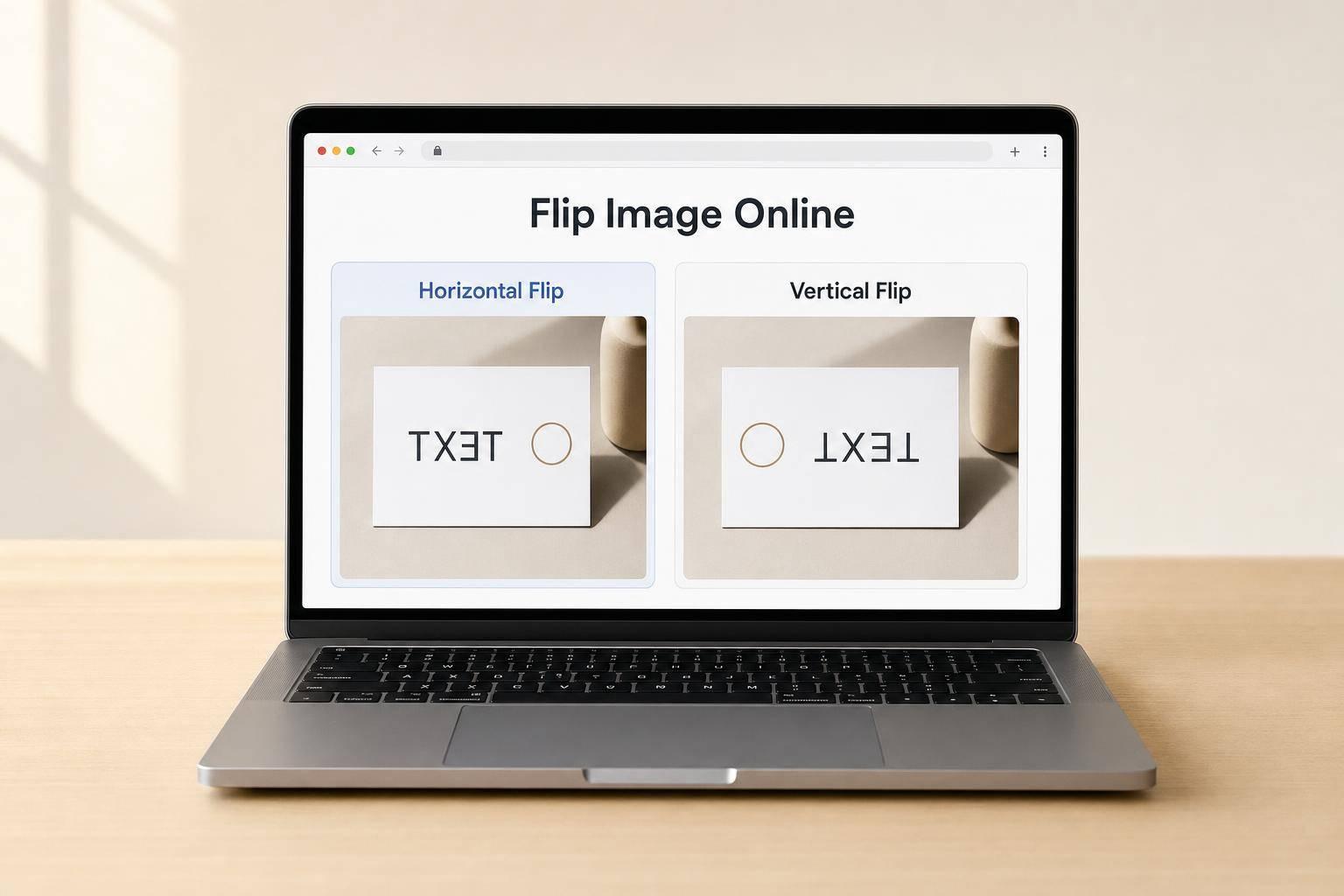

If your image looks backward, use a horizontal flip first. If you want it upside down, use a vertical flip.
I’d sum it up like this: horizontal flip fixes most selfies, portraits, scans, and product shots, while vertical flip is mostly for reflection looks, upside-down scans, and stylized visuals. The big thing to check before saving is text, logos, numbers, and direction cues - because a flip can make them backward or upside down.
Here’s the short version:
About 1 out of 2 flip choices people make on selfies and product shots comes down to one question: Does the image feel mirrored or upside down? That single check usually gives me the right answer fast.
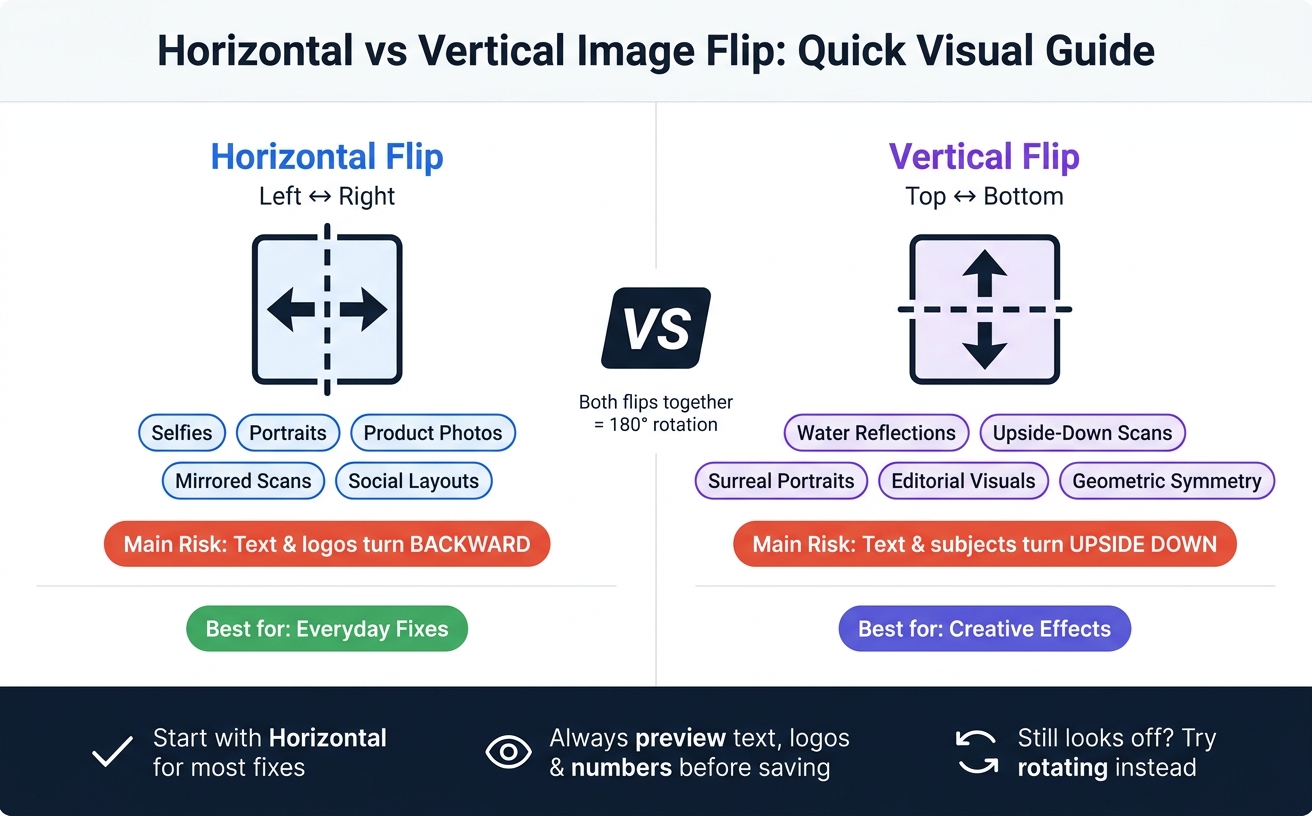
Horizontal vs Vertical Image Flip: Quick Visual Guide
| Type | What changes | Best for | Main risk |
|---|---|---|---|
| Horizontal flip | Left ↔ Right | Selfies, portraits, product direction, mirrored scans | Text and logos turn backward |
| Vertical flip | Top ↔ Bottom | Reflections, upside-down effects, scan fixes | Text and subjects turn upside down |
So if I want a fast rule, I use this one: horizontal for fixes, vertical for effect.
A horizontal flip switches the left and right sides of an image. It’s usually the go-to option when a photo feels backward or a bit off balance. For day-to-day edits, it’s often the most useful place to start.
People often expect to see their face the way it looks in a mirror. That’s why selfies can feel more natural after a horizontal flip: the left-right details shift to match that familiar view.
Portraits work the same way. The direction a person faces can change the whole feel of the shot. If someone is looking toward the outer edge of the frame, the image can seem a little uneven. A horizontal flip can turn that outward gaze inward and make the composition feel better balanced.
This kind of flip isn’t just for people photos. It also helps when you want a set of images to look consistent. In product photography, a horizontal flip can line up direction across multiple shots so each item faces the same way.
For social posts, flipping can help rebalance a layout when too much visual weight sits on one side. One thing to watch closely: text. Shirt graphics, packaging labels, and brand logos will appear backward after the flip.
It’s smart to preview the change before saving. ROCKIMG shows the flip right in your browser, so you can spot backward text, logos, and other directional details before you download the final image.
If the image needs a top-to-bottom reversal instead, vertical flip changes the result in a different way.
If a horizontal flip mirrors an image from left to right, a vertical flip does the same thing from top to bottom. It reflects the image across its horizontal center line, so the top moves to the bottom and the bottom moves to the top, while left and right stay the same. The end result looks upside down. In most cases, this is more of a style choice than a standard photo correction.
With portraits and selfies, the whole subject turns upside down. The same goes for landscapes: the sky drops to the bottom, and the ground jumps to the top. Text still reads in the same left-to-right order, but it becomes upside down, which makes it tough to read.
That’s why vertical flip works best when you want that upside-down look instead of trying to fix a photo.
Vertical flip is often used for effects like:
These uses lean more into mood and visual style than everyday image correction.
Once you know what each flip does, picking the right one gets pretty simple. In most cases, horizontal flip is the one you’ll use for everyday fixes. Vertical flip is more of a special-effect tool. The easiest way to choose is to look at the kind of image you have and the result you want.
| Use Case | Horizontal Flip Result | Vertical Flip Result | Best Practice |
|---|---|---|---|
| Selfies | Restores the natural mirror look; corrects backward shirt text | Creates a stylized, upside-down effect | Use horizontal to match the camera's live preview |
| Product photos | Changes the direction the product faces for consistent orientation across product shots | Turns the product upside down; labels become unreadable | Use horizontal for layout consistency; avoid if logos are present |
| Text & logos | Text reads backward (mirror image) | Text appears upside down | Avoid both unless correcting an image that was already mirrored |
For selfies, horizontal flip is usually the right call. It matches the mirrored preview you saw in the camera app and fixes backward text on shirts, signs, or anything else in the frame. If you just want an upside-down look for style, then vertical flip can do that.
Text is the biggest red flag here. Flip an image horizontally, and readable text - like shirt graphics, street signs, or book spines - turns into a mirror image. Flip it vertically, and that same text ends up upside down.
The same goes for logos and brand marks. They usually have a set direction, so flipping them can make the image look off. With product photos, a horizontal flip can help keep items facing the same way across a set of shots. That said, it only works when there aren’t visible labels or logos that would become hard to read.
Use horizontal for most fixes. Use vertical only for reflection-style edits or upside-down effects. For example, you can create a water reflection to add a realistic mirror effect to the bottom of your image.
Horizontal flip handles most day-to-day fixes. It’s usually the first move for front-camera selfies, product photos, and scans with reversed text. Vertical flip is more of a style tool. It works best for water reflections, upside-down scans, or other images where an inverted look is done on purpose.
Before you save, take a quick look at anything that needs to stay readable or directional. That includes:
That small check can save you from editing the image all over again if a flip makes something look awkward or hard to read.
ROCKIMG makes this easy with an instant browser preview, so you can check the result before saving.
Start with horizontal. If that doesn’t fix it, try vertical. If the image still feels off, rotate it instead.
Use rotation when the image is sideways or upside down. Rotation changes which side faces up. So if a photo is turned on its side, rotate it 90°. If it’s fully upside down, rotate it 180°.
Use flipping when you need a mirror image. A horizontal flip can fix mirrored selfies, correct backward text, or switch the direction a person or object faces. A vertical flip is better for reflection-style effects or photos that need to be mirrored from top to bottom.
Selfies can look off because your phone’s front camera often shows a horizontally flipped preview, like a mirror. That feels normal while you’re lining up the shot.
But a lot of phones save the final photo without that mirror view. So small details, like your hair part, watch, or shirt text, end up on the opposite side. If the saved image doesn’t match what you saw in the preview, a horizontal flip in ROCKIMG can bring it back to the look you expected.
Yes. Flipping an image reverses text and logos.
A horizontal flip makes text read backward and mirrors logos. A vertical flip turns them upside down.
If your image includes readable text, brand marks, or directional cues, flipping can make them look wrong or confusing. Check for those elements before you finalize the edit.