image tool
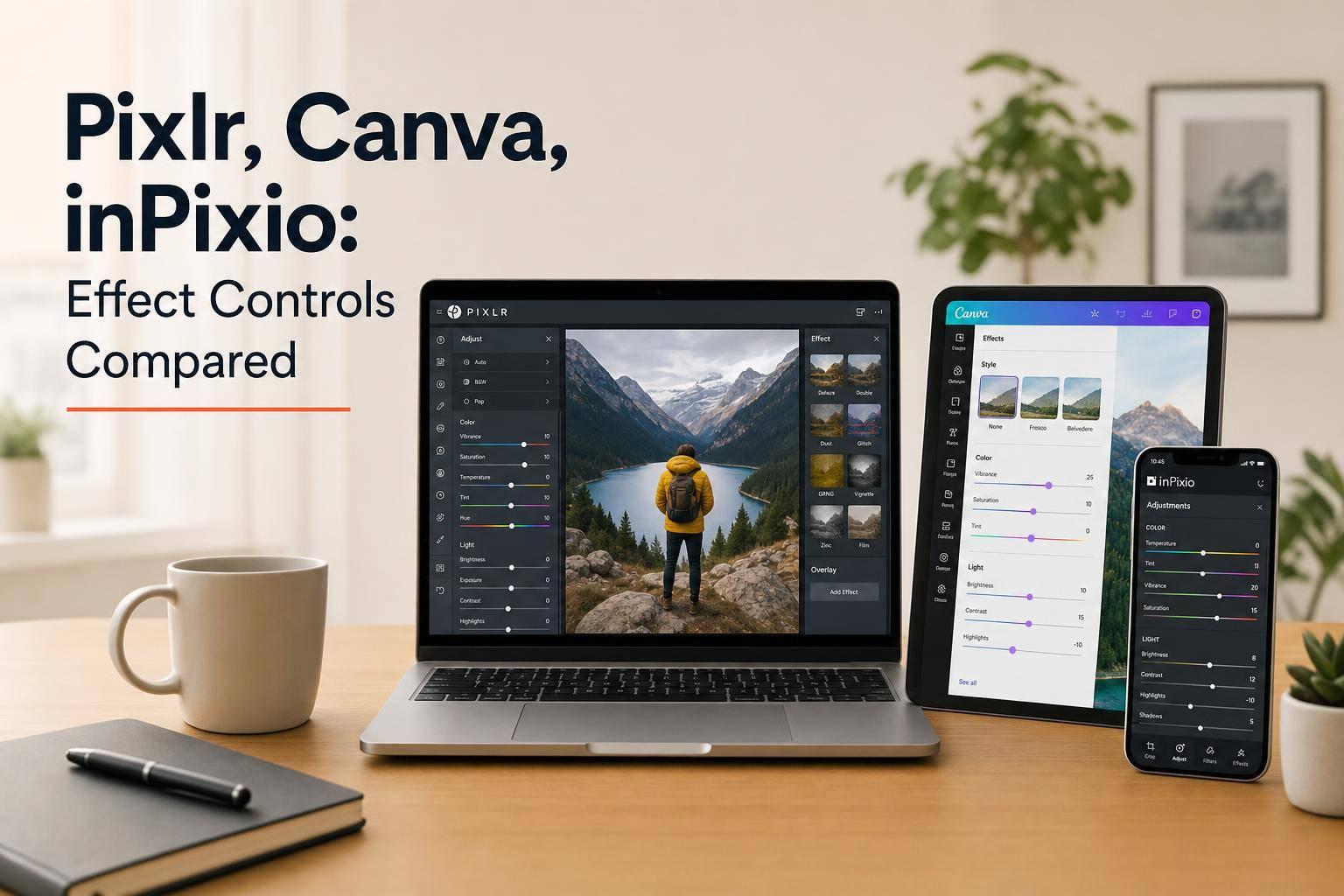

If you want the short answer: Pixlr gives me the most control, Canva is the easiest for fast edits, and inPixio is best when I want exact numeric changes.
I’m not looking at who has the most effects. I’m looking at how well I can control them. That means slider range, live preview, preset tuning, undo/reset, GIF support, and how easy it is to make small changes like +5% brightness or a light contrast shift.
Here’s the article in one glance:
Quick Comparison
| Tool | Best For | Effect Control | Undo/Reset | GIF Use |
|---|---|---|---|---|
| Pixlr | Hands-on image editing | Deep slider control | Step-by-step undo | Limited |
| Canva | Fast preset-based edits | Simple intensity tuning | Undo + element reset | Yes, but not frame-by-frame |
| inPixio | Exact still-image corrections | Typed percentage input | Less flexible | No, still images only |
If I want to get precise, I’d pick Pixlr or inPixio. If I want to edit fast and keep things simple, I’d pick Canva.
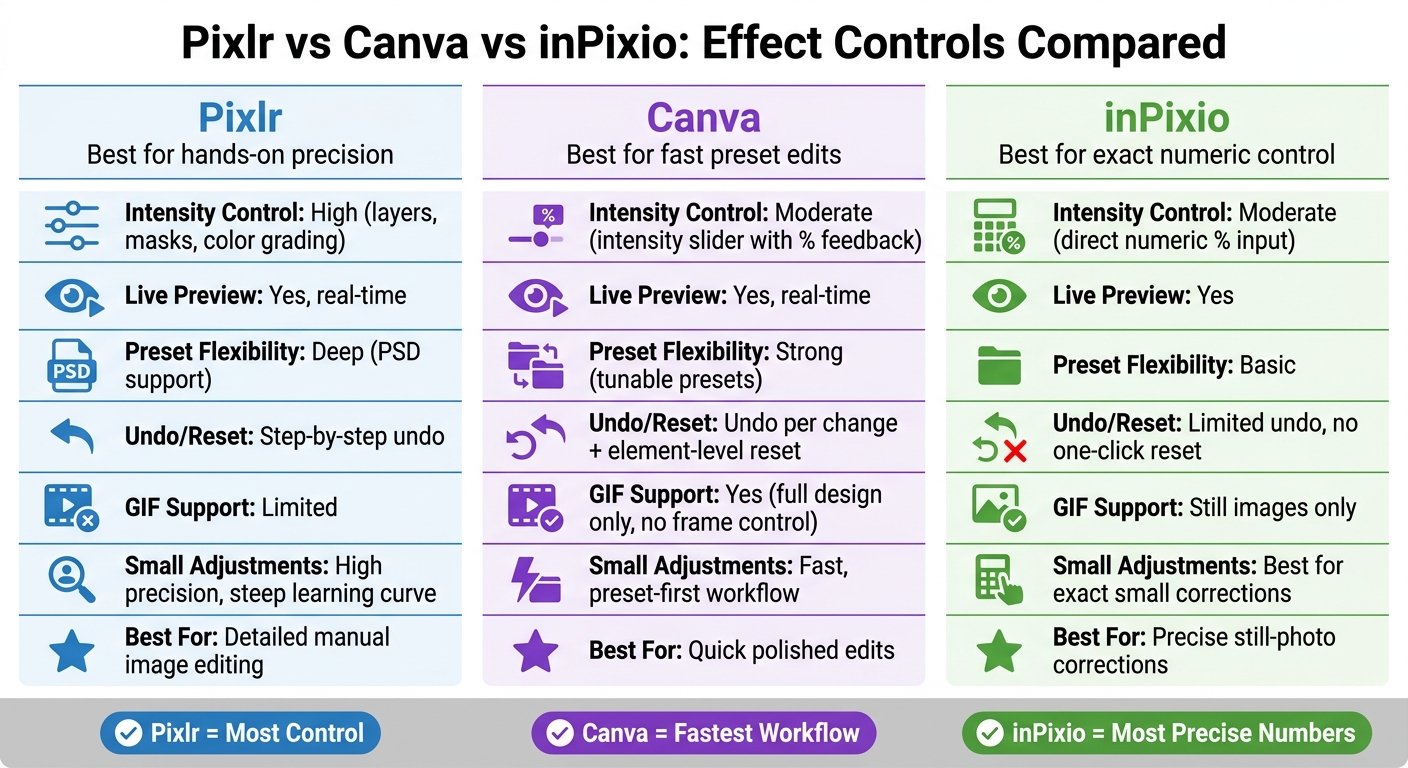
Pixlr vs Canva vs inPixio: Effect Controls Compared
Pixlr gives you the most control over sliders in this group, but it asks more from you in return. Canva goes the other way. It leans on presets and keeps intensity changes simpler and easier to manage.
Pixlr’s sliders are precise enough for small exposure and color edits, which makes it easier to clean up an image without pushing the effect too far. The live preview also helps a lot. You can see changes as they happen, so it’s easier to fine-tune instead of just dropping an effect on at full power.
Pixlr also includes layers, masks, color grading, and PSD support. That gives you more control, but it also makes the editing process a bit heavier.
That extra control comes with a steeper learning curve. Pixlr fits detailed edits better than quick touch-ups. Its undo feature works best when you want to walk back changes step by step, not when you want a fast one-click reset.
Pixlr is weaker with GIFs than with still images. The live preview is still helpful when you want fine control, but the interface doesn’t feel built for fast, casual edits. In practice, Pixlr is strongest when you want to make manual image changes, while Canva leans more on preset-based control.
If Pixlr leans toward fine control, Canva leans toward speed. It starts with preset filters, then gives you a few simple ways to dial things in.
Click on a photo and Canva shows preset filters plus an intensity slider with percentage feedback. The presets are just the first pass. The slider, along with manual controls for brightness, contrast, and saturation, is where you make smaller edits and get the look closer to what you want.
Canva keeps the edit flow simple, which is part of the appeal. As you change effects, the canvas updates right away. Use Undo if you want to reverse one change, or Reset if you want to wipe all adjustments from that element. That mix of quick presets and light tuning makes it easier to keep a similar style across multiple elements.
Canva does support GIF export. But when you work with animated content, the effect controls are more limited than they are for still images. Filters and intensity changes apply to the full design, not individual frames, so you have less control when you want frame-by-frame edits.
Unlike the slider-first tools above, inPixio lets you enter exact values by hand. That’s the big draw here. If you need a precise percentage instead of a rough preset, this tool makes more sense.
The Adjustments Panel includes brightness, contrast, saturation, temperature, hue, vibrance, and opacity. Each slider also accepts direct numeric input, so you can type exact values like +5% or -10% when you want small, careful changes.
That makes inPixio a better fit for measured corrections than big effect shifts. Instead of dragging a slider back and forth and eyeballing the result, you can just enter the number you want and move on.
The main strength here is simple: exact percentage entry for small corrections. If you like control, this feels more precise.
At the same time, inPixio doesn’t give you the same step-by-step undo flow as Pixlr, and there’s no one-click reset like Canva’s element-level reset. So the tradeoff is pretty clear. You lose some convenience, but you gain direct numeric control. For fine-tuning, that can be a good swap.
inPixio works best for still images. Its percentage sliders and typed values make precise photo corrections easier, especially when the goal is subtle cleanup instead of heavy editing.
Use it for still photos, not animated edits. That limit stands out even more in the side-by-side comparison below.
The fastest way to tell these three tools apart comes down to depth, speed, and precision.
Pixlr gives you the most hands-on control, but it also asks more from you. It’s the least friendly option for beginners. Canva leans hard into speed, using presets first and light tuning after that. inPixio sits in a different lane: it’s built for exact numeric input, which makes it a good pick for careful, measured fixes.
Here’s how each editor handles intensity, live preview, and fine-tuning in day-to-day use:
| Tool | Intensity Control | Live Preview | Preset Flexibility | Undo/Reset Flow | GIF Support | Small Adjustment Fit |
|---|---|---|---|---|---|---|
| Pixlr | High - layers, masks, precise color grading | Yes, real-time | Deep - PSD support | Step-by-step undo | Limited | High precision, steep learning curve |
| Canva | Moderate - intensity slider with percentage feedback | Yes, real-time | Strong - tunable presets | Undo per change + element-level reset | Supported, limited frame control | Fast, preset-first workflow |
| inPixio | Moderate - percentage sliders with direct numeric input | Yes | Basic | Limited undo, no one-click reset | Still images only | Best for exact small corrections |
In plain English, Pixlr is the one you pick when you want to get into the weeds. Canva is better when you want a polished result without much setup. inPixio works well when small number-based changes matter more than broad styling options.
When it comes to GIFs, Canva has the strongest support of the three. It can export GIFs, but there’s a catch: effects apply to the full design, not to each frame one by one. That’s fine for simple motion graphics, but less ideal if you want frame-level edits.
inPixio is much more focused on still images, so it doesn’t stretch well into animated work. Pixlr can handle some GIF-related tasks, but that’s not where it shines either.
So the split is pretty clear. If you want deeper control, go with Pixlr. If speed matters most, Canva makes more sense. If you care about exact numeric tuning for small corrections, inPixio fits that job best.
For beginners, ROCKIMG is the easiest pick. It keeps things simple with a browser-based setup and real-time changes, so you can watch your edits happen as you make them.
The tools are easy to use, with clear sliders and drag-and-drop controls. That means you can get polished results fast, without signing up or installing software.
For small, precise photo edits, ROCKIMG is a solid pick. It gives you real-time intensity sliders, so you can start with a light touch and dial things up bit by bit.
The live preview also helps a lot. You can see subtle changes to color, contrast, and noise right in your browser as you make them.
You can fine-tune specific parts of GIFs in ROCKIMG, such as text overlays. That includes things like font size, color, opacity, and position.
When it comes to visual intensity sliders and most creative filters, fine-tuning is mainly built for static images like JPG and PNG.
So if you want more involved GIF effects, you may need to: