image tool

Yes - you can add text to a GIF online, and for most people, one static caption line is the best choice. It’s easier to read, easier to export, and often keeps the file smaller than timed text.
Here’s the short version:
I’d keep the text short, place it at the top or bottom, and use bold, high-contrast styling. If the caption changes frame by frame, file size can jump fast. And if the GIF starts looking soft after upload, that’s usually the sign to switch to MP4.
GIF vs. MP4 Captions: Which Format Should You Use?
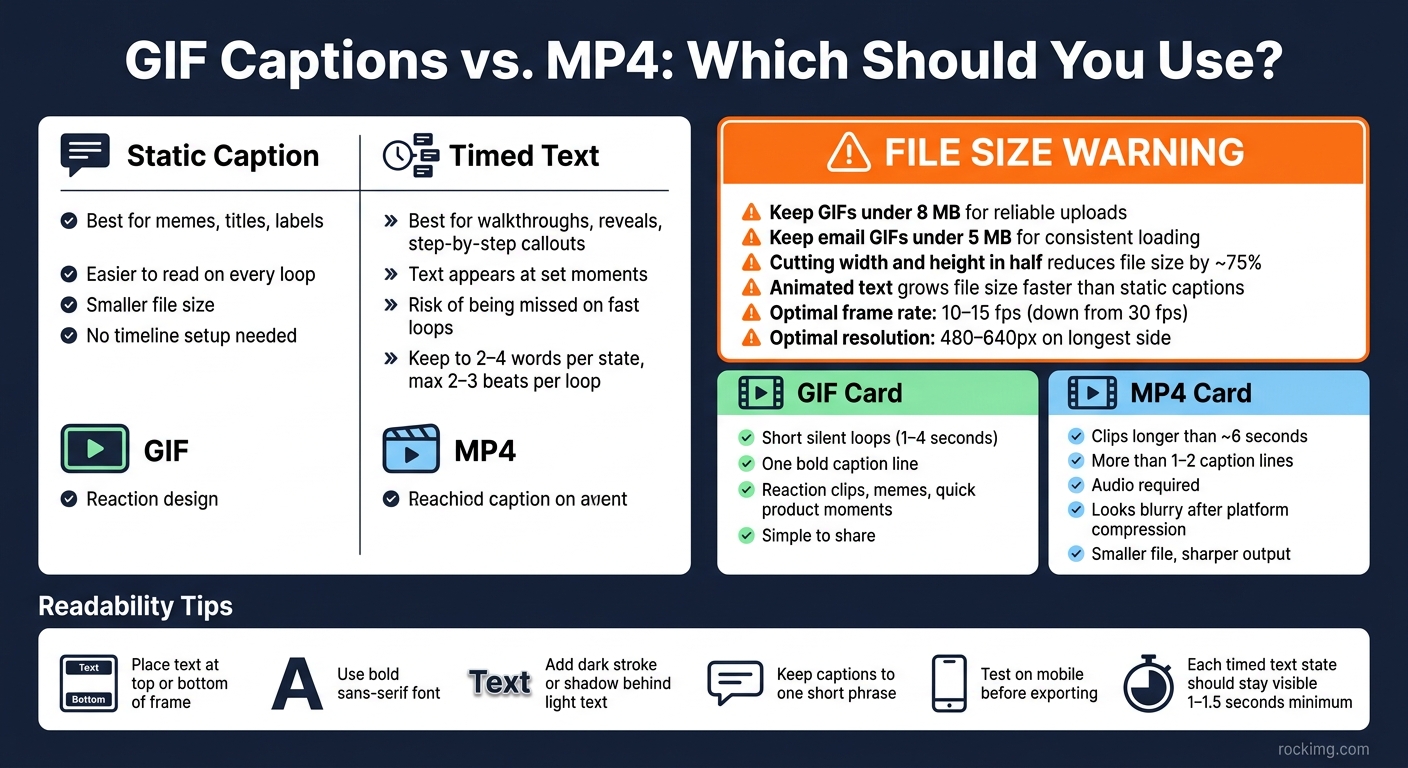
| Option | Best for | Main upside | Main problem |
|---|---|---|---|
| Static caption | Memes, titles, labels | Easier to read on every loop | Less useful for step-by-step timing |
| Timed text | Walkthroughs, reveals, callouts | Lets text appear at set moments | Easy to miss on fast loops |
| GIF | Short silent loops | Simple to share | File size grows fast |
| MP4 | Longer clips, more text | Smaller file, sharper output | Not a GIF loop format |
Bottom line: if you want a captioned GIF that holds up online, keep it short, keep it readable, and don’t force a GIF to do a video’s job.
Once you add text to a GIF, the next call is simple: should the text stay on screen the whole time, or show up at certain moments? In most cases, static text is the default. Timed text is the special case.
A static overlay appears on every frame. You add the text, place it, and export - no timeline work needed. That makes it a good fit for GIF memes with text, titles, labels, and short instructions.
There’s another upside: file size. Since the text stays the same from frame to frame, the encoder can often compress the GIF more efficiently. That usually helps keep the file smaller than a version with animated text.
Static text is also easier to read. If someone opens the GIF halfway through the loop, they still see the full caption right away. There’s no need to catch it at the “right” moment. For better legibility, use a bold sans-serif font and add a dark stroke or shadow behind light text so it stands out on busy backgrounds.
If the message needs to hit at a specific moment, timed text starts to make more sense.
Timed text works best when the message unfolds in steps. That includes UI walkthroughs, callouts like "Step 1: Open Settings" and then "Step 2: Tap Wi-Fi", or a promo reveal where a banner appears on cue. If sequence matters, the extra setup can be worth it.
The catch is easy to spot: people can miss the text on fast loops. If each text state stays on screen for less than about 1 to 1.5 seconds, mobile viewers may miss it before the GIF starts over. A safer approach is to keep animated captions short - about 2–4 words per state - and limit the sequence to two or three clear beats per loop. That keeps the message easy to follow instead of turning the GIF into a blur.
Use static overlays when text should always stay visible. Use timed text only when the message depends on order. After that, loop speed and placement play a big part in whether people can read the text without strain.
Once the caption timing is set, the next job is making sure it still reads cleanly when the GIF loops.
A GIF starts over on its own, so the caption has to make sense on the first pass.
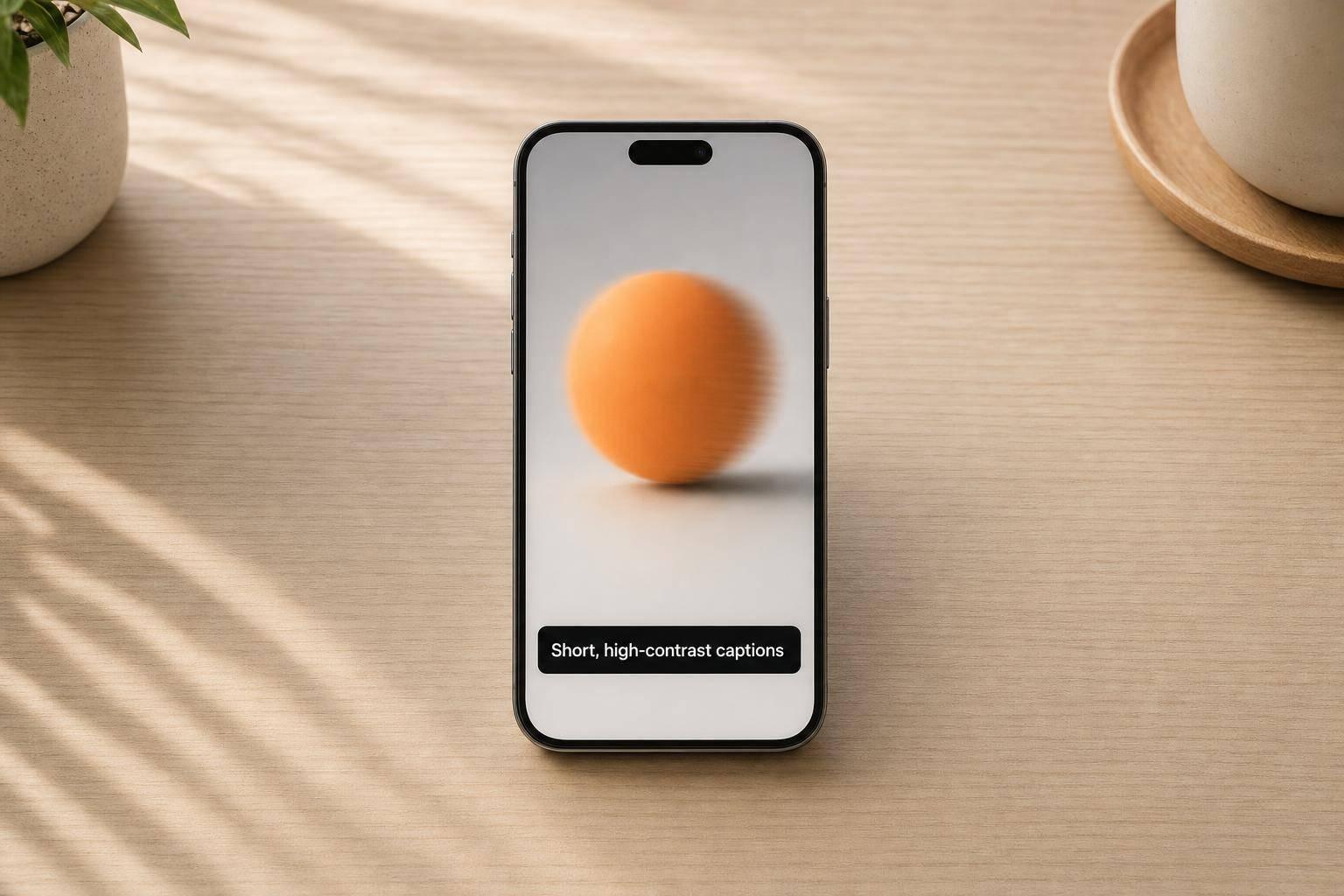
The safest move is to use one short phrase or add text to the GIF using a tool that allows for precise placement. Thick blocks of text are slower to scan, and that problem gets worse on mobile.
Placement matters just as much as word count. Putting text at the top or bottom of the frame keeps it away from the main action and often makes it easier to read against a more even background. Use high-contrast text, like white with a dark outline. Make the text large enough to read in a quick glance on a phone. Before you export, test the GIF on mobile.
The usual issues are late starts, captions that cut off too soon, and rough loop seams. Time the caption to a pause, a reaction, or a repeating motion. The last frame should match the first frame. Keep the caption on screen for the full loop, or let it end on a clean frame that matches the opening frame.
If the caption reads well but the file becomes too large, the next limit is file size and export caps.
Once the text is easy to read, file size becomes the next problem. GIFs save captions as pixels in every frame, so text adds weight fast.
A few things make that happen even faster: longer duration, larger dimensions, animated text effects, and more frames. Size changes are especially brutal. Cut both the width and height in half, and the file size can drop by about 75%. Animated text tends to grow file size the most because it creates more frame-to-frame changes.
The fixes are pretty simple:
Tools like ROCKIMG can show a live output-size estimate in the browser before export, which makes testing smaller versions a lot less of a guessing game.
Short GIFs under 8 MB tend to upload more reliably, and email GIFs under 5 MB tend to load more consistently. Once a captioned GIF goes past those limits, small text is often the first thing to fall apart. Platforms recompress the file, and the edges of caption strokes start to soften.
GIF text works best for short, silent, looping content. Think reaction clips, meme-style posts, quick product moments, or a simple two-step interaction. A 1–4 second clip with one bold caption line loads fast and is easy to share.
Once the file gets bigger or the text gets more complex, video is usually the better call. Converting the GIF to MP4 is often smaller and sharper for longer clips, several lines of text, or audio. In plain terms: use a GIF for short loops, and use video for longer clips or text-heavy posts.
The clearest signs to switch are pretty easy to spot:
In those cases, a short MP4 with text baked into the video will usually hold up better.
Yes, you can caption GIFs online. And for most people, static overlays are the easiest way to do it.
Why? One line of text stays on screen for the whole loop, so you don’t have to mess with timing.
Timed captions make more sense when the text needs to appear, change, or disappear in the middle of the animation. That can work well, but there’s a catch: if the timing is off, the text might disappear too early or hang around too long. So it’s smart to preview everything before you export.
Once readability is handled, file size usually becomes the main thing to watch. Animated text changes pixels frame by frame, and that can make the file grow fast. GIFs are best for short loops, reaction clips, and simple captioning. If the clip is longer or the captions use a lot of text, MP4 is often the better pick.
ROCKIMG lets you caption GIFs right in your browser and convert formats without registration.
Yes - if you keep captions short and avoid text that’s too large, which can get cut off on smaller screens.
If you place text over an image, add some background opacity so it’s easier to read. If the caption sits above or below the image, use colors that stand out from the background. ROCKIMG lets you adjust the font, size, color, and position so the image looks better on mobile.
Keep it short and punchy. If the file is too large, use the ROCKIMG cropping tool to trim extra pixels from the animation area.
You can also shrink the image dimensions or cut the color palette before you re-encode it. Want a much smaller file without losing smooth motion? Convert the GIF to an MP4 with the ROCKIMG converter.
Use MP4 instead of GIF when you want a smaller file size or better visual quality for the same clip length.
GIFs are fine for short, looping animations and reaction-style posts. But once the clip gets longer, they tend to get bulky fast.
MP4 is also the better pick for sharing in messaging apps that handle video better than image-based animation files.
If you need to switch between the two, ROCKIMG can help you convert them right in your browser.